TurboScan™: PDF scanner
- 4.8
- Rating
- 1.00M
- Installs
- Free
- Price
 Analysis by App-foxy
When I need a clean copy of a paper but do not have a desktop scanner nearby, I want something that gets out of the way quickly. TurboScan™ is built for that exact situation: it turns an Android or iOS phone into a document-scanning tool for receipts, forms, notes, and other pages. I found it most useful when the goal was not to create a beautiful archive, but to capture a readable document and move on with the rest of my day.
It is a free business app from Piksoft Inc., available for everyone to use. Its long presence in the mobile app space also shows in its broad adoption: it has passed a million installs, with an average rating of 4.8 from roughly twenty-nine thousand ratings. Those figures do not replace hands-on testing, but they do suggest that the basic scanning workflow has worked well for many people.
What to expect from the scanning experience
The first thing to understand is that TurboScan is a focused document utility, not a full office suite. I would open it when I had a physical page in front of me and wanted a digital copy, rather than when I needed to edit a contract, organize a large company archive, or collaborate with several people. That narrow purpose is one of its strengths because the app does not make a simple scan feel like a large project.
You May Also Like

 Blood Strike: 2.5 Anniversary
Blood Strike’s Loadouts Turn Every Drop Into a Tactical Gamble
A close look at Blood Strike’s custom loadouts: how fast access to signature weapons reshapes its battle royale rhythm, rewards preparation, and narrows the gap between fights.

 Pandora - Music & Podcasts
Pandora’s Music Is Easy to Start, but Harder to Recover
Pandora’s strength is its low-effort path from a seed to a station. Its weak spot is how much confidence it asks you to place in connection, setup, and quiet recovery.

 8 Ball Pool
 Is Built on Rivalries, Rematches, and Routine
A close look at the rivalries, rematches, shared routines, and unanswered safety questions that turn a quick pool match into a persistent mobile community.

 Samsung Music
’s Quiet Strength Is Playing What You Already Own
Its reach comes less from spectacle than from dependable access to a personal library. That simplicity is both the app’s strongest retention engine and its ceiling.

 AccuWeather: Weather Radar
AccuWeather Review: A Quick, Clear Forecast for Everyday Decisions
For everyday plans, the best forecast is the one you can understand quickly. AccuWeather makes rain timing, radar, and local conditions easy to act on, with a few trade-offs.

 Hill Climb Racing
Why Hill Climb Racing Still Turns Crashes Into One More Run
A tiny car, a bumpy hill and one more upgrade: Hill Climb Racing keeps resurfacing because its simple chaos makes every near-miss feel personal.
More From Our News Desk



In everyday use, the phone camera becomes the capture point. I place the document on a reasonably flat, contrasting surface, frame it, and check the result before treating it as finished. The quality of the final scan depends heavily on that preparation. A wrinkled page, dim room, glare, or a busy background can make even a capable scanner produce an awkward result.
My advice for a first attempt is to start with a single sheet rather than a stack. Use a page with large, clear text and good lighting. That gives you a quick way to learn the capture controls, inspect the edges, and see whether the result is suitable for your purpose. A clean first success is more useful than beginning with a difficult receipt or a multi-page form.
The app is especially convenient for people who regularly receive paper documents away from a desk. Students can capture handwritten notes after class, freelancers can keep a copy of a signed page, and small-business owners can digitize receipts before they disappear into a bag. I also see value in using it as a temporary bridge: scan the document now, then sort or rename the resulting file later when you have more time.
Who will appreciate it most
I would recommend TurboScan to someone who wants a dedicated scanner rather than a general-purpose camera. The distinction matters. A normal camera can photograph a page, but a document scanner encourages you to think about framing, readability, and a usable digital result. That makes it a better fit for paperwork that you may need to send, store, or consult again.
It is also a sensible choice for occasional users who do not want to learn a complicated desktop program. The free entry point makes it easy to try, while the Everyone age rating keeps it suitable for a broad range of users. In-app purchases are listed at $7.99 per item, so I would look carefully at what is included before paying for anything and decide whether the extra value matches how often I scan.
On the other hand, I would not choose it as my only tool for a high-volume records department. If you need automatic filing across a large archive, deep text recognition, team permissions, or a carefully managed document workflow, a more specialized office solution may be a better investment. TurboScan is strongest when it solves a specific paper-to-phone problem without demanding much setup.
Getting ready for the first scan
After installing the app, I would begin by preparing the physical document instead of immediately pointing the camera at it. Smooth the page, remove clips or folds, and place it where the edges are easy to see. A plain table works better than a patterned surface. If the paper is glossy, shifting the phone or light source slightly can reduce reflections that hide words.
Then I would make sure the entire page is visible in the camera view. It is tempting to move in close for larger text, but cutting off a corner can be more troublesome than capturing a little extra background. The important check is not whether the preview looks dramatic; it is whether every edge and line that matters is inside the frame.
For a receipt, I use a different approach. Receipts are often narrow, pale, and printed with small type, so I place them flat and avoid shadows from my hand. I take a moment to inspect the lower portion, where totals and transaction details are easy to crop accidentally. This is one of the small habits that makes the app feel more reliable: the camera position matters as much as the software.
Before scanning a form, I decide what I actually need to preserve. If a signature, checkbox, or handwritten note is important, I make sure it is not hidden by glare or a fold. If the page has several sections, I check the scan at full size rather than judging it only from a small thumbnail. A document can look fine at a glance and still lose a critical detail.
Making the first meaningful result
For a reassuring first run, I would scan a normal printed page and immediately inspect its boundaries. Look at the top, bottom, and corners first. If the page is straight enough and the text is readable, save that result before experimenting with more difficult material. This gives you a usable document and a reference point for later scans.
One practical workflow is to scan paperwork as soon as it arrives, while the context is still clear. Imagine receiving a repair invoice at home. I would place it on the table, capture it, check that the date and amount are visible, and then keep the paper until I know the digital copy is sufficient. That sequence prevents the common mistake of assuming a scan is usable without actually opening and checking it.
For a multi-page document, consistency becomes more important than speed. Keep the phone at a similar height and use the same surface for each page. After adding a page, review the order before finishing. A perfectly readable set of pages is still inconvenient if the second page appears before the first or if one sheet was accidentally skipped.
I also recommend scanning one document at a time when you are learning. Mixing a receipt, a letter, and a handwritten note in one session makes it harder to notice which lighting or angle caused a problem. Once the basic process feels natural, you can work faster without losing that review step.
Small habits that improve real results
The first non-obvious lesson is that lighting should be treated as part of the scan, not as an afterthought. Direct light can create a bright patch across the page, while overhead room light can cast the phone’s shadow exactly where a signature sits. I get better results by using broad, indirect light and holding the phone so my body is not blocking the page.
The second is to protect the edges. Document scanning is not only about making letters sharp; it is about preserving the shape and completeness of the page. I leave a little breathing room around the document during capture, then inspect the boundaries carefully. This is particularly important for forms where a small box or line near the margin may carry meaning.
The third is to separate capture from filing. When I am standing in a shop, office, or hallway, my priority is a complete, readable scan. I do not spend that moment trying to build a perfect naming system. I capture first, verify the important details, and organize the file when I can concentrate. That approach reduces rushed mistakes.
A fourth useful habit is to keep the original paper until the digital copy has passed a deliberate check. I look for missing corners, blurred text, unexpected shadows, and pages in the wrong order. This is especially worthwhile for tax-related receipts, signed agreements, travel documents, and anything that would be difficult to recreate.
Common points of confusion
New users sometimes expect a phone scanner to behave like a dedicated office machine. It cannot remove every problem caused by a badly folded page or poor lighting. If the source is difficult, the best fix is usually to improve the setup and capture again, not to keep adjusting the result afterward. TurboScan can make the process more convenient, but it cannot replace a flatbed scanner for every type of original.
Another possible confusion is the difference between a scan and an editable document. A scanned page gives you a digital representation of the paper. That does not automatically mean the words can be edited like text in a word processor. If your main goal is to extract and rewrite text, you should confirm that the workflow you need is supported before depending on the app for that task.
It is also easy to mistake a quick preview for a finished document. I would always open the captured page and inspect small print, signatures, totals, and margins. A scan that looks acceptable in a list may reveal a soft corner or missing line when viewed more closely.
Privacy deserves practical attention too. I would avoid scanning sensitive paperwork casually in a public place, and I would be careful about where the resulting files are stored or shared. This is not a criticism unique to TurboScan; any app that handles identity documents, financial papers, or signed contracts deserves the same caution. The safest workflow is to capture only what you need and review the destination before sending it elsewhere.
The purchase model may also raise questions. The app itself is free, but individual in-app purchases are listed at $7.99 per item. I would use the free experience first, identify the exact limitation that affects me, and only then consider an upgrade. Someone who scans a page once every few months may find the free option sufficient, while a frequent user may value additional capabilities enough to justify the cost.
How it compares with familiar alternatives
A phone camera is the simplest alternative, and it wins when you only need a casual visual record. For a document that must look tidy and be easy to review, I prefer TurboScan because its purpose is centered on scanning rather than ordinary photography. The trade-off is that a camera app may feel faster for a single informal snapshot.
A desktop scanner remains the better choice when you need repeatable alignment, large batches, or the most controlled image quality. It is less convenient when you are away from the office, which is where TurboScan earns its place. I see the two tools as complementary rather than competing: use the phone for immediate capture and the desk scanner for structured, high-volume work.
General office suites can be attractive if you already live inside a larger ecosystem of cloud storage, editing, and collaboration. They may be preferable for teams that need documents to move through an established process. TurboScan makes more sense when you want a focused scanner and do not need every office feature wrapped around it.
That comparison helped me define the app’s ideal role. It is not trying to be a complete records-management system. It is a practical answer to the question, “How do I turn this paper into a useful digital copy right now?” For that question, a dedicated scanner can be less distracting than a broader productivity package.
Who should use it and who should skip it
I think TurboScan is a good match for students, independent workers, travelers, parents handling school paperwork, and small businesses that need occasional document capture. It is also useful for anyone who has ever postponed filing a receipt because the nearest scanner was in another room. The app’s value appears in those small interruptions, where convenience matters more than a complex feature set.
I would be more cautious about recommending it to someone managing thousands of pages or requiring a tightly controlled professional archive. In that situation, the important questions are not only whether a page can be captured, but how documents are indexed, searched, reviewed, backed up, and shared over time. A specialized system may save more effort even if it takes longer to learn.
People who dislike checking their work may also find a phone scanner frustrating. The best results come from a brief quality-control habit: inspect the scan, confirm the important details, and keep the original until you are satisfied. If you want to point, shoot, and never look again, no mobile scanner is likely to remove that responsibility entirely.
My recommendation after using the workflow
TurboScan succeeds because it focuses on a common need and makes the phone useful when a traditional scanner is unavailable. I like it most as an on-demand tool: capture a form before leaving an appointment, preserve a receipt before it fades or gets lost, or send a readable copy of a signed page without returning to a desk.
My strongest recommendation is to judge it with a real document rather than a staged test. Try one ordinary page, one small receipt, and one multi-page item. That quickly reveals whether the capture process suits your hands, lighting, and filing habits. It also helps you decide whether any optional purchase is worthwhile instead of paying before you understand your own usage.
The app has been available since July 23, 2015, and Piksoft Inc. has kept it positioned as a business utility rather than a novelty camera effect. That longevity, combined with its strong user response and more than a million installs, gives it a credible place among mobile scanning choices. Still, popularity does not change the basic trade-off: convenience depends on careful framing and a final inspection.
For first-time users, the path is straightforward. Prepare a flat page, use even light, capture the whole document, inspect the edges and important text, and only then treat the scan as complete. That short verification step is what turns a quick phone photo into a dependable piece of paperwork. If you need occasional, portable scanning, I would happily recommend giving TurboScan a try. If you need advanced document management or the controlled consistency of office hardware, I would choose a more specialized alternative instead.
FAQs for TurboScan™: PDF scanner
01What is TurboScan™: PDF scanner used for?
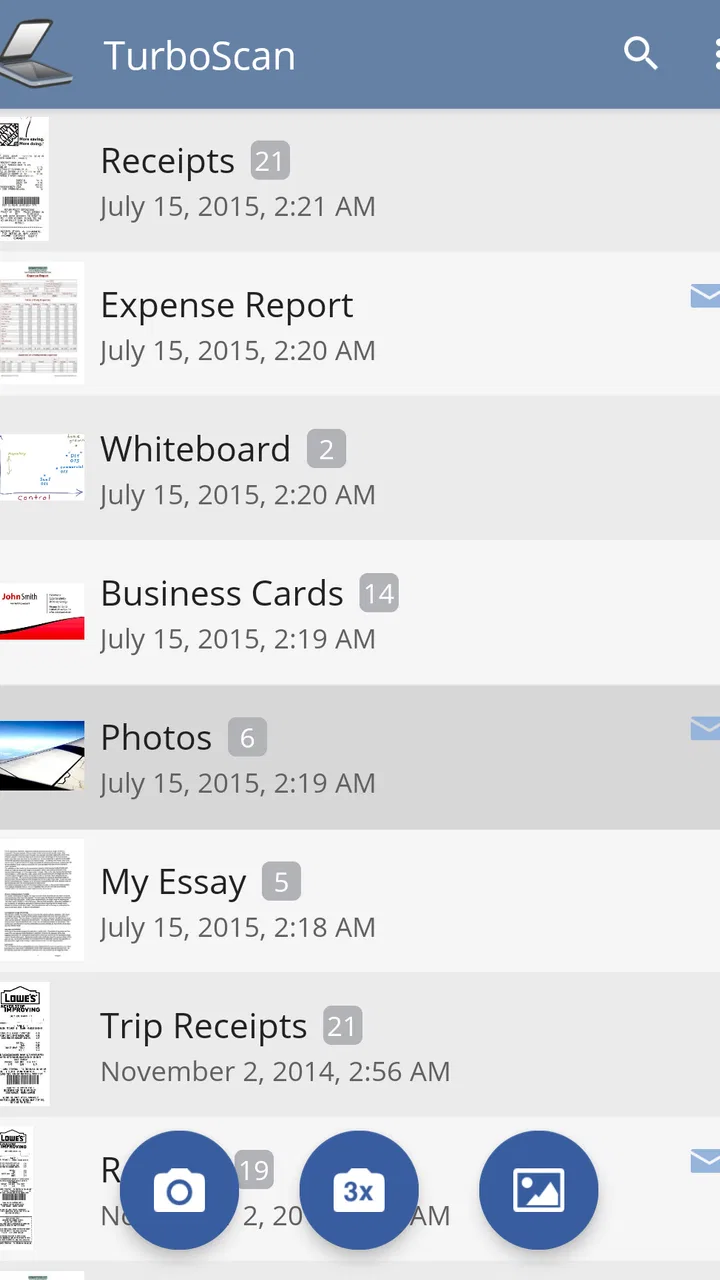
TurboScan™: PDF scanner turns your Android or iOS device into a portable document scanner. After photographing a page, receipt, business card, or other paper document, the app detects the edges, improves contrast, and creates a sharper digital copy. You can combine multiple pages into one PDF, save scans, and share them when you need quick access to paperwork.
02Does TurboScan™: PDF scanner require an internet connection?
The main scanning process generally works directly on your device, so you can capture documents without being connected to the internet. This is useful when scanning receipts, forms, or notes while traveling. However, an internet connection may still be needed for certain actions, such as downloading the app, using cloud-sharing services, sending files through online platforms, or accessing store-related features.
03Can TurboScan create multi-page PDFs and export scanned documents?
Yes, TurboScan is designed to create PDF files from one or several scanned pages. You can add pages to a document, reorder or remove them, and save the completed scan as a multi-page PDF. Depending on your device and installed apps, documents can usually be shared through email, messaging applications, cloud storage, or other supported export options.
04How good is the scan quality compared with a traditional scanner?
TurboScan can produce clear and practical scans when the document is placed on a flat, well-lit surface and the camera is held steadily. Its edge detection, perspective correction, and image enhancement help make text easier to read. Nevertheless, results depend on your phone’s camera and lighting, so a dedicated office scanner may still provide better quality for professional photos, tiny print, or archival work.
05Is TurboScan™: PDF scanner free to download, and are there limitations?
TurboScan may be available as a free or paid version depending on the platform and region, and the available features can differ between editions. Before downloading, check the current store listing for pricing, advertisements, page limits, export options, and any in-app purchases. Users who scan documents frequently should also review whether advanced tools or unrestricted use require an upgrade.
Pros
- Creates clear
- multi-page PDF scans quickly
- Automatic edge detection helps frame documents accurately
- Supports exporting scans to email and cloud services
- Useful batch mode for receipts and paperwork
- Scanned files can be organized and renamed easily
Cons
- Some advanced features require a paid upgrade
- OCR and text editing options are limited
- Heavy document batches may use considerable storage
- Image quality depends strongly on lighting and camera focus
- The interface may feel dated on newer devices

TurboScan™: PDF scanner
Gallery